
UniFi Protect 7.3 “Super Encoding”: Do the Retention Math Before You Flip the Switch
 Josh Madrone
Ubiquiti shipped UniFi Protect Application 7.3.70 on October 2, 2026. The headline feature for anyone who designs camera systems is a new Super Encoding setting in Storage Budgeting, which Ubiquiti says delivers up to 50% better storage efficiency for longer recording retention.
That’s a big number. For a lot of systems, retention is the single constraint that drives the drive count, the NVR model and the price. So it’s worth slowing down and thinking about what it really means before turning it on across every site.
What shipped in 7.3.70
From Ubiquiti’s release notes, the improvements include:
- Super Encoding setting in Storage Budgeting
- Dashboard Time Machine, for reviewing past activity at a glance
- A sound level graph for Glass Break sensor calibration
- A Buzzer option in Alarm Manager for the G6 180 Enhancer
- Improvements to Find Anything (drag-and-drop assignment, notification controls, UniFi user identification, detection activity charts)
- Sensor Manager event charts, filtering and customizable columns
- Better Playback range selection, player controls and Case Manager PDF reports
The release also lists a long run of bug fixes, including alarm manager and PTZ home view fixes.
Coverage from Dong Knows Tech also describes 7.3 adding remote camera adoption over Ubiquiti’s Teleport VPN, letting a single NVR record cameras at other locations, with specific requirements for camera firmware, UniFi OS and the gateway. That’s a big feature in its own right, but this post sticks to storage.
What “up to 50%” actually means
“Up to” is doing a lot of work in that sentence, and that’s not a criticism. It’s how video compression works. Modern encoders save the most space when most of the frame isn’t changing. A camera pointed at a quiet hallway at night compresses extremely well. A camera on a busy parking lot with trees moving in the wind does not.
Willie Howe’s write-up on 7.3 describes Super Encoding as allocating bitrate dynamically, compressing static backgrounds while preserving motion detail. He also passes along early reports of playback and quality problems on some G6 180 models with Super Encoding enabled, and recommends enabling it selectively rather than globally for now. That matches how I’d approach any new encoding feature.
So on a real system, expect your savings to vary by camera. Some will come close to the headline number. Some won’t.
The retention math
Here’s the part I wish more people did before buying drives. Retention in days is just:
days = (usable capacity × fill factor) / (sum of average camera bitrates × seconds per day ÷ 8)
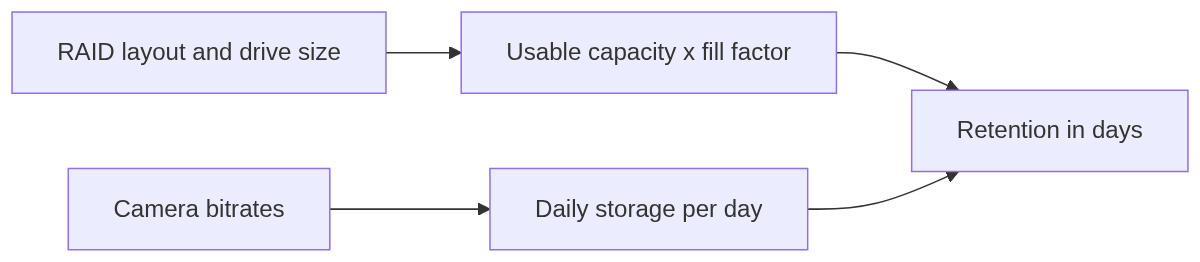
The fill factor accounts for the fact that you never get to use 100% of a volume. I use 0.9 as a planning number. Here’s a small Python calculator that does the math for a RAID layout and shows what different savings levels would do:
#!/usr/bin/env python3
"""Estimate NVR retention (days) for a camera bitrate budget and RAID layout."""

RAID_DATA_DRIVES = {"raid1": lambda n: n / 2, "raid5": lambda n: n - 1,
                    "raid6": lambda n: n - 2, "raid10": lambda n: n / 2}


def usable_tb(drives: int, drive_tb: float, raid: str) -> float:
    return RAID_DATA_DRIVES[raid](drives) * drive_tb


def retention_days(bitrates_mbps: list[float], capacity_tb: float, fill: float = 0.9) -> float:
    bytes_per_day = sum(bitrates_mbps) * 1_000_000 / 8 * 86_400
    return capacity_tb * 1e12 * fill / bytes_per_day


if __name__ == "__main__":
    cameras = [6.0] * 12          # 12 cameras averaging 6 Mbps each
    capacity = usable_tb(drives=4, drive_tb=8, raid="raid5")
    print(f"Usable capacity: {capacity:.0f} TB")
    for savings in (0.0, 0.25, 0.50):
        adjusted = [b * (1 - savings) for b in cameras]
        print(f"{savings:>4.0%} savings -> {retention_days(adjusted, capacity):5.1f} days")
Output for that example (12 cameras averaging 6 Mbps, four 8 TB drives in RAID 5):
Usable capacity: 24 TB
  0% savings ->  27.8 days
 25% savings ->  37.0 days
 50% savings ->  55.6 days
📝 Note: Those bitrates are an example, not a measurement. Use the real average bitrates from your own cameras. Averages over a full day, including night, are what matter for retention, not the peak.
The point of running the numbers is to see the range. If savings land at 25% instead of 50% on your cameras, you still gain more than a week on this example. That’s a real benefit, but it’s not the same as “double the retention,” and you don’t want to promise a client 55 days and deliver 37.
How I’d roll it out
Here’s the process I’d use on a client system:
- Back up the console first. Make sure a current UniFi OS backup exists and is stored off the console before any Protect update.
- Record a baseline. Write down average bitrate per camera and current retention from Storage Budgeting. Without a before number, you can’t measure the after.
- Pilot it small. Willie Howe notes the setting applies per device group rather than on a per-camera schedule, so scope it as narrowly as your setup allows: ideally one quiet camera, one busy one, and one that matters most for evidence (an entrance or register). If you can’t scope it that tightly, pilot on a smaller site first.
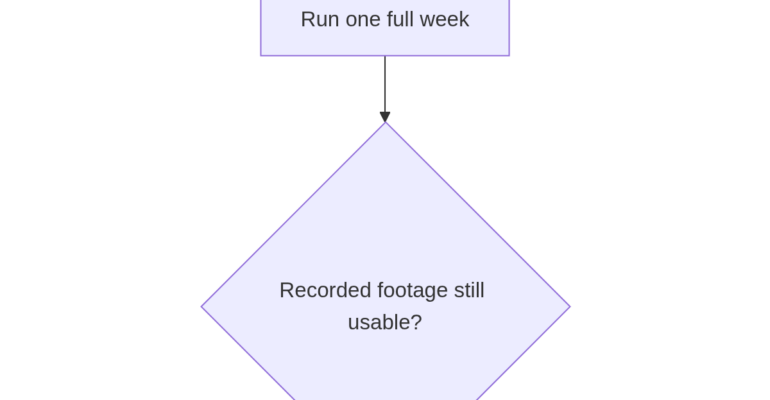
- Run it for a full week. Weekdays and weekends look different, and so do days and nights.
- Compare bitrate and review footage. Look at the stored recordings, not just live view. Check faces at the door, plates if you capture them, and motion at night. If the footage is worse where it counts, the storage savings aren’t worth it.
- Expand, or don’t. Roll it out to similar cameras, and keep it off where quality or playback suffers.
- Decide what to do with the savings. Either keep the same drives and extend retention, or keep retention the same and size the next system smaller.
Talking to clients about it
This is where I think integrators earn their keep. A storage feature is really a retention feature, and retention is a policy decision, not just a technical one.
What I tell clients:
- Know your required retention. Some businesses have a number they need to hit because of an insurance requirement, a lease, an internal policy, or just how long it usually takes them to notice a problem. Start there.
- Retention is only useful if the footage is usable. Thirty days of footage that can’t identify a face is worth less than fourteen days that can.
- Write it down. If the retention target changes because of a feature like this, update whatever document says how long video is kept.
For new installs, Super Encoding is also a reason to re-run the sizing math before you quote drives. Just quote the conservative number until you’ve seen how it performs on cameras like the ones you’re installing.
My take
I’m glad to see Ubiquiti spending effort on storage efficiency. Retention is one of the things that makes or breaks a camera system, and an efficiency gain that arrives as a software update is a big deal for small businesses that are running out of days on the NVR they already own.
But treat it like any other change to an evidence system. Measure first, pilot on a few cameras, look at the footage, and only then turn it on everywhere. “Up to 50%” is a ceiling, not a promise.
Sources
- UniFi Protect Application 7.3.70 release notes — Ubiquiti, October 2, 2026
- UniFi Protect 7.3: Mad Storage Reduction, Remote Cameras, and More — Dong Knows Tech, October 2, 2026
- UniFi Protect 7.3: Super Encoding, Dashboard Time Machine, and What Installers Need to Know — Willie Howe Technology, October 3, 2026